


For most of the history of web design, motion has been expensive. A looping hero video on a landing page meant a shoot or a motion designer. An animated product walkthrough meant days in After Effects. A short clip explaining a dashboard feature meant scripting, recording, editing and re-recording every time the interface changed. As a result, most interfaces stayed static, and motion was reserved for teams with large budgets.
AI video generation is lowering that barrier quickly. With clips becoming longer, resolutions rising and reference-guided generation keeping output consistent with a brand, designers and front-end developers are starting to treat video as a regular design material rather than a special production. This article looks at where that shift is heading and how UI teams can prepare.
Where motion adds real value in interfaces
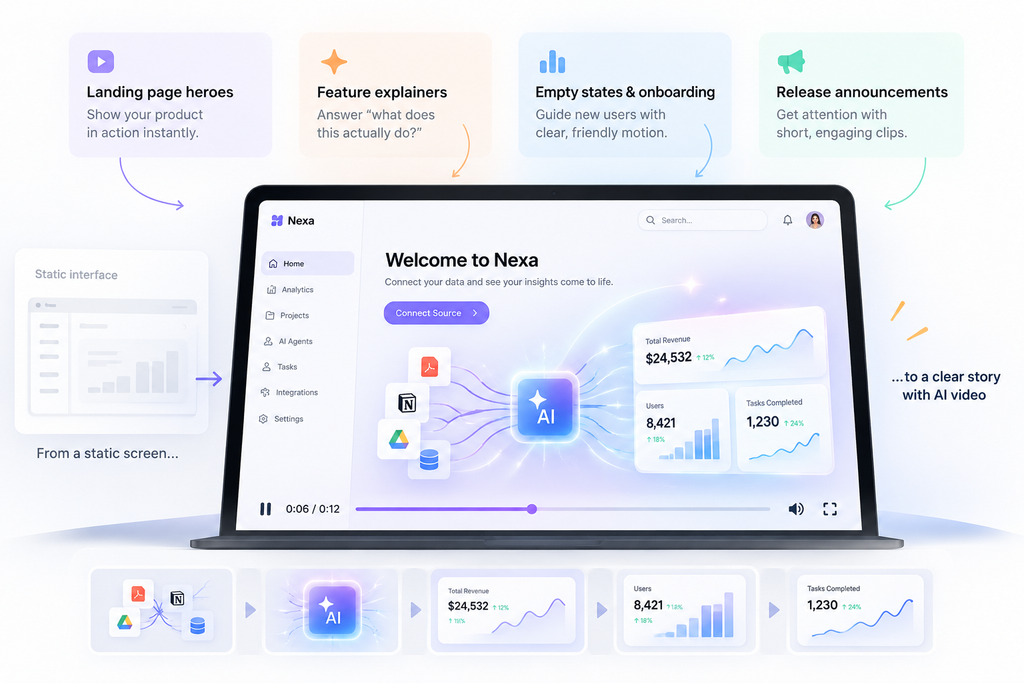
Motion is not decoration when it is used well. It helps users understand what a product does, where to look and what just happened. The most valuable placements include:
- Landing page heroes. A short loop that shows the product’s core idea in context communicates more in five seconds than a paragraph of copy.
- Feature explainers. A brief clip beside each feature on a pricing or features page answers the question “what does this actually do?”
- Empty states and onboarding. Dashboards and admin templates often show users an empty screen on day one. A short, friendly clip explaining the first step reduces confusion.
- Release announcements. In-app announcements with a short clip are noticed far more often than text banners.
What is changing in AI video
Three developments make AI video more practical for interface work.
Longer clips. Early models produced only a few seconds. Newly announced models describe clips of up to thirty seconds, enough for a complete explainer without stitching fragments together.
Higher resolution. Announcements of output up to 4K matter for large hero sections and high-density displays, where low-resolution video looks immediately cheap.
Reference-guided generation. Multimodal references allow designers to supply brand illustrations, product screenshots or colour palettes so that generated motion matches the rest of the design system. This is the feature that turns AI video from a novelty into a usable design asset.
Kling 4.0 is a good example of this direction: its announced features include three to thirty second clips, output up to 4K and multimodal references, with a separate Flash variant for faster generation. Those details are still announcements rather than confirmed API specifications, but teams planning motion-heavy redesigns can follow the Kling 4.0 preview to see when access opens and how the Flash specifications compare.
Designing for generated motion
Treat video as a component. Define a video component in your design system with standard aspect ratios, poster frames, loading states, captions and controls. Generated clips then slot into a consistent container rather than being embedded ad hoc.
Mind performance. Video is heavy. Use poster images, lazy loading, compressed formats and short loops. A beautiful hero clip that delays the largest contentful paint by two seconds costs more in conversions than it gains.
Respect accessibility. Provide captions for anything with speech, honour reduced-motion preferences by showing a still image instead, and never rely on video alone to convey essential information.
Keep interfaces real. Generated video is ideal for concepts and atmosphere, but product demos should show the actual interface. Users who see a generated “screenshot” that does not match the real product lose trust immediately. Combine screen recordings of the real UI with generated scenes for context.
Generated video is ideal for concepts and atmosphere, but product demos should show the actual interface. The same principle applies to AI imagery in UI design, where generated visuals work best as supporting assets rather than replacements for functional interfaces.
A closer look: the dashboard empty state
Admin dashboards are a good place to see how generated video changes a familiar pattern. A new user logs in for the first time and sees empty charts, a table with no rows and a sidebar full of sections they do not yet understand. Traditionally, designers fill that moment with an illustration and a line of text such as “No data yet. Connect a source to get started.”
A short generated clip can do more. In eight to twelve seconds, it can show data flowing from a connected source into the charts the user is looking at, in the same colours and visual style as the dashboard itself, ending on a frame that matches the real interface so that the transition from video to product feels seamless. Reference images from the design system keep the clip on-brand, and a fixed final frame ensures it lands exactly where the real UI begins.
Implementation details matter. The clip should autoplay muted only once, respect the user’s reduced-motion setting, include a visible replay control and disappear permanently once the user has connected a source. A poster frame should load first, so the empty state is never blank while the video downloads.
The same pattern applies to onboarding checklists, feature tours and upgrade prompts. In each case, the generated clip explains a concept, while the real interface remains the source of truth for anything the user will actually click.
Workflow and cost
Most video models charge per second of generated output, and designers typically produce several variations before choosing one. For a landing page that needs a hero loop and five feature clips, budget for many attempts and for review time. Teams producing video at scale, for example generating a clip for every template or every feature release, often connect models through an API to their build or content pipeline so that clips are generated, stored and versioned alongside other assets.
Questions to ask before adding video to an interface
Before generating any clip, it is worth answering three questions. Does the video explain something the static design cannot? Will the interface still work perfectly for users who never watch it? And who will update the clip when the product changes? If any answer is unclear, a better illustration or clearer copy is usually the right solution, and the video can wait.
Preparing your design system
Before generated video becomes routine, prepare three things: a clear motion style guide covering pace, colour and framing; a library of reference assets such as brand illustrations and approved screenshots; and component patterns for embedding video responsibly. With these in place, adopting new video models becomes a matter of swapping the generator, not redesigning the system.
Conclusion
Static interfaces were a product of cost, not of preference. As AI video becomes longer, sharper and easier to keep on-brand, motion will increasingly become the default rather than the exception in landing pages, dashboards and product demos. The teams that benefit most will be those that treat generated video as part of their design system, with the same attention to performance, accessibility and honesty as any other component.

